
How to Print a Family Tree from a GEDCOM File
If you have spent years researching your family history, eventually you may want something more permanent than names and dates sitting inside genealogy software or on a website.
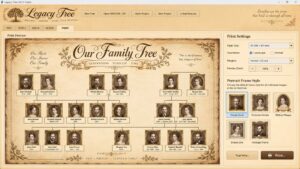
A printed family tree lets you see generations of your family at once, display it on a wall, keep it with family records, or give copies to relatives.
The good news is that if you already have a GEDCOM file, most of the difficult work has already been done.
What Is a GEDCOM File?
GEDCOM stands for Genealogical Data Communication.
It is a standard file format used by genealogy programs and family-history websites to exchange family-tree information.
A GEDCOM file normally has the extension:
.ged
It can contain information such as names, dates of birth and death, marriages, relationships, places, notes and other genealogical information.
One of the main advantages of GEDCOM is that your family tree is not permanently locked into the program or website where you originally created it.
You can export the GEDCOM file and open it using other compatible genealogy software.
Why Print a Family Tree?
Modern genealogy is brilliant for storing enormous amounts of information, but viewing a large family tree on a computer screen can become awkward.
You constantly zoom in, zoom out and move around the tree trying to follow different branches.
Printing the tree gives you a completely different perspective.
A large printed family tree can make relationships and family branches much easier to understand. It can also reveal gaps, unusual family patterns and connections that are difficult to notice when looking at only a small section of the tree on screen.
And, of course, a printed family tree simply makes a great family keepsake.
Step 1: Export Your Family Tree as a GEDCOM File
If your family tree is stored in genealogy software or on an online family-history service, look for an option such as:
-
-
-
-
-
- Export GEDCOM
- Download GEDCOM
- Export Family Tree
- Download Tree
- Backup or Export
-
-
-
-
Save the .ged file somewhere easy to find, such as your Documents folder.
It is also worth keeping an untouched backup copy of the original GEDCOM before making any changes.
Step 2: Import the GEDCOM into Family Tree Software
You now need software capable of reading the GEDCOM file and turning the information back into a visual family tree.
Open your family-tree program and select its GEDCOM import option.
Depending on the size of your family tree, importing can take anything from a few seconds to considerably longer for trees containing hundreds or thousands of people.
Once imported, check a few people and relationships to make sure everything has transferred correctly.
GEDCOM is a widely supported format, but different genealogy programs sometimes interpret certain specialist fields slightly differently.
Step 3: Choose Which Part of the Family Tree to Print
This is where things become more interesting.
You may not always want to print every person in a large GEDCOM file.
For example, you might want:
Your complete family tree, showing as many generations and branches as possible.
Ancestors only, following parents, grandparents, great-grandparents and earlier generations.
Descendants only, beginning with one ancestor and following their children and later generations.
Immediate family, for a much simpler display.
You may also want to concentrate on a particular branch of the family rather than trying to squeeze hundreds of people onto one sheet.
Legacy Tree also allows family information to be filtered by birth location, which can be useful when studying branches associated with a particular county, region or country.
Step 4: Arrange the Family Tree
Before printing, spend a little time getting the layout right.
Look for overlapping names, badly positioned branches or unnecessary empty areas.
A good family-tree layout should make it easy to follow the connection from one generation to another without having to decipher a bowl of genealogy spaghetti.
If photographs are available, adding portraits can make the finished tree considerably more personal.
For decorative family trees, you may also want to choose suitable portrait frames, backgrounds or family crests.
Step 5: Check the Print Size
This is particularly important with large trees.
A family tree containing dozens or hundreds of people can become unreadable if it is simply shrunk to fit onto a single A4 sheet.
Before printing, check:
Paper size: A4 may be fine for a small tree, while larger trees may require A3 or a much larger format.
Orientation: Landscape is often better for wide family trees.
Scale: Make sure names and dates remain readable.
Margins: Leave enough room around the edge so important information is not clipped by the printer.
For very large trees, another option is to export the finished tree and have it printed professionally as a poster.
Step 6: Print or Export Your Family Tree
Once everything looks right, print a test copy before using expensive paper.
Check that:
names are readable, connector lines are clear, generations are positioned correctly, no information has been cut off, and photographs or decorative elements reproduce properly.
If the software supports PDF or high-resolution export, it can also be useful to create a digital copy of the finished tree.
You can then keep the file as an archive, send it to family members, or take it to a professional printing company.
Printing a GEDCOM Family Tree with Legacy Tree
Legacy Tree was designed specifically to make importing, viewing and printing GEDCOM family trees straightforward.
Rather than trying to become a huge general-purpose genealogy database, it concentrates on turning existing GEDCOM information into a family tree that is easy to browse, arrange and print.
It includes different family views, portrait support, family-tree navigation, location filtering and printing tools designed specifically for presenting your genealogy clearly.
If you already have a .ged file and want an easier way to turn it into something you can actually see and print, take a look at our GEDCOM family tree printing software.
Keep a Copy of Your Family History
A GEDCOM file may only be a small computer file, but it can represent hundreds of years of family history.
Printing your family tree creates something physical that can be kept, displayed and passed on.
And unlike another forgotten file buried three folders deep on an old computer, a family tree hanging on the wall has a habit of getting people talking.
Someone inevitably points at a name and says:
“Hang on… who the hell was that?”
And another branch of the family history begins.
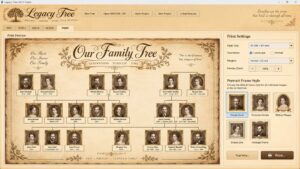
Legacy Tree GEDCOM Family Tree Printing Software
Copyright© 2012-2026 Radionics Software. All rights reserved.